Textual: Workers, Debounce, and Logging
Three practical Textual patterns I learned while building a Python terminal app.
This is a shorter post that documents three things I learned this week while working on a Textual app.
Textual is a rapid application development framework for building terminal user interfaces in Python. I use it often for my prototypes. It’s easy to pick up and well-documented, and because Textual uses concepts similar to the DOM and supports CSS for styling widgets, AI agents are often able to produce fairly usable interfaces in the first few iterations.
Workers
I was recently working on a slightly more interactive app than usual, one that had to run a few background operations that took up to a second while updating the interface on a timer at the same time. Simply doing the heavy work within a message handler made the UI lock up and become unresponsive.
The idiomatic way to resolve that is to use Textual workers. The run_worker method runs the heavy coroutine in the background, keeping the UI responsive.
1
2
3
4
5
6
class MyApp(App):
    async def on_input_changed(self, message: Input.Changed) -> None:
        self.run_worker(self.do_work(message.value), exclusive=True)

    async def do_work(self, input: str) -> None:
      # do the heavy work
An alternative and more readable approach is to use the work decorator.
1
2
3
4
5
6
7
class MyApp(App):
    async def on_input_changed(self, message: Input.Changed) -> None:
        self.do_work(message.value)

    @work(exclusive=True)
    async def do_work(self, input: str) -> None:
      # do the heavy work
Worker return values
The return value of a worker won’t be available until the work has completed. The return value can be checked with the worker.result attribute. It will initially be None, but will be replaced with the return value of the function when the worker completes. You can wait for the worker using the worker.wait coroutine, but a better approach is to handle the worker lifecycle events. The SUCCESS event will carry the return value without having to explicitly wait.
Read more about workers in the Textual documentation.
Deferred execution
With the background coroutine handling the heavy work and the UI responsive again, another challenge became apparent. The Input.Changed event fires every time the input’s value changes, so effectively with every keystroke. This is not a good approach; we should wait for the user to stop typing before triggering the actual work. This pattern is called debounce, and it means “wait until the user stops typing for N ms, then run once.”
The way to do it in Textual is to use a timer for debounce, and use @work(..., exclusive=True) for worker cancellation, ensuring latest-only execution.
1
2
3
4
5
6
7
8
9
10
11
12
13
14
15
16
17
18
19
class MyApp(App):
    def on_mount(self) -> None:
        self._timer: Timer | None = None
        self._latest_input = ""

    def on_input_changed(self, message: Input.Changed) -> None:
        self._latest_input = message.value

        if self._timer is None:
            self._timer = self.set_timer(0.35, self.do_work, pause=True)

        self._timer.reset()
        self._timer.resume()


    @work(exclusive=True)
    async def do_work(self) -> None:
      input = self._latest_input
      # do the heavy work
It’s a few more lines, but it ensures that the worker executes after the user stops typing instead of on every keystroke. In this case, the timer waits for 350 ms.
Logging from a Textual app
Logs are irreplaceable for any app past a “Hello World” example. It’s usually better to capture overly verbose logs than the other way around. In Textual, wiring in a logger is easy because Textual includes a logger that is compatible with Python’s logging module.
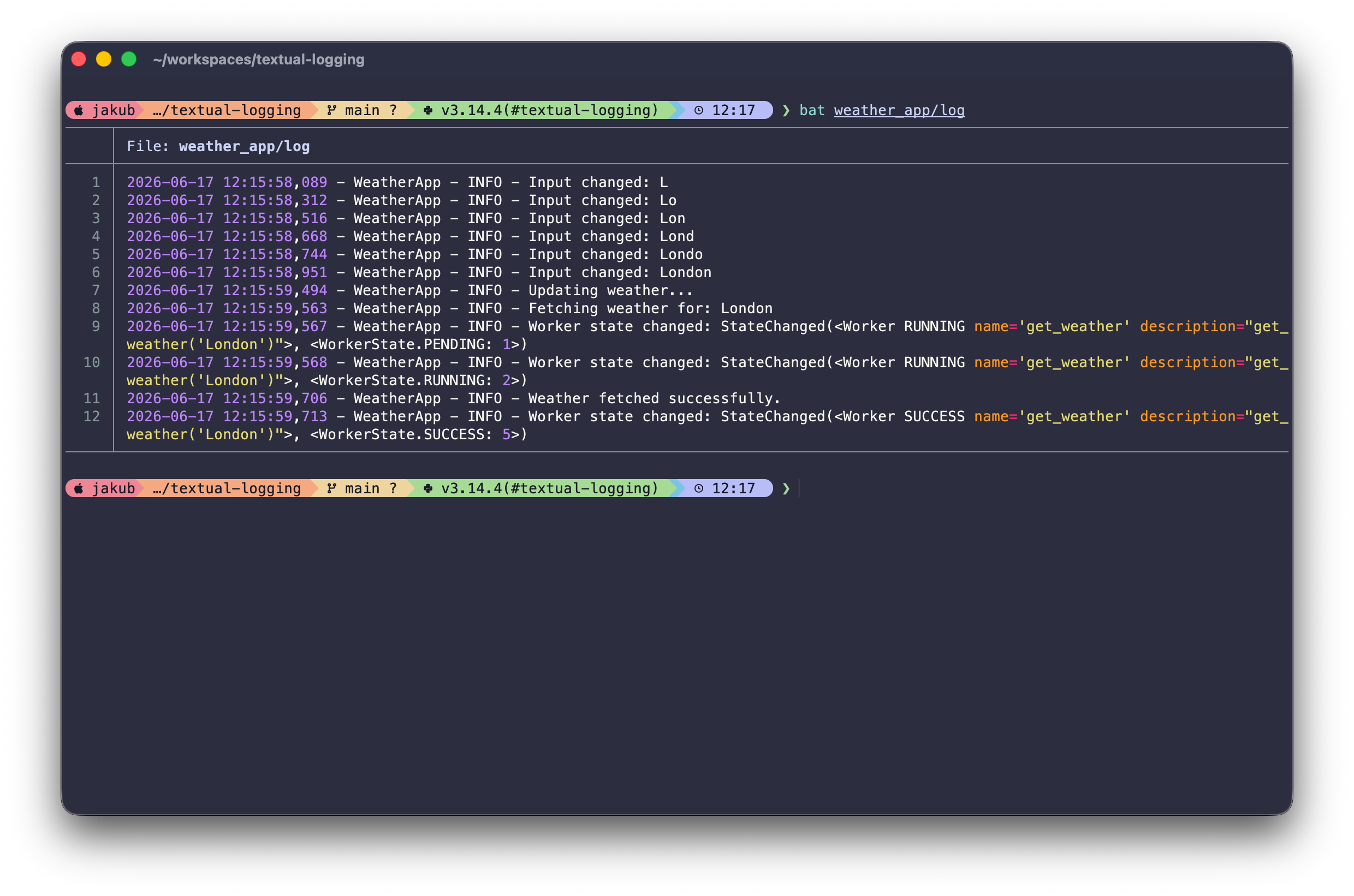
Python has several built-in logging handlers that can be used to write to stdout, to a file, a stream, or even to email. Textual includes a TextualHandler that is compatible with Python logging handlers and can be used directly with the logger instance.
1
2
3
4
5
6
7
8
9
10
11
12
13
14
15
16
17
18
19
20
21
class MyApp(App):
    def __init__(self) -> None:
        super().__init__()

        self.logger = logging.getLogger(name=self.__class__.__name__)
        self.logger.setLevel(logging.INFO)

        file_handler = logging.FileHandler("log")
        self.logger.addHandler(file_handler)

        formatter = logging.Formatter(
            ("%(asctime)s - %(name)s - %(levelname)s - %(message)s")
        )
        file_handler.setFormatter(formatter)

        textual_handler = TextualHandler()
        self.logger.addHandler(textual_handler)

    @work(exclusive=True)
    async def do_work(self) -> None:
      self.logger.info("Doing work!")
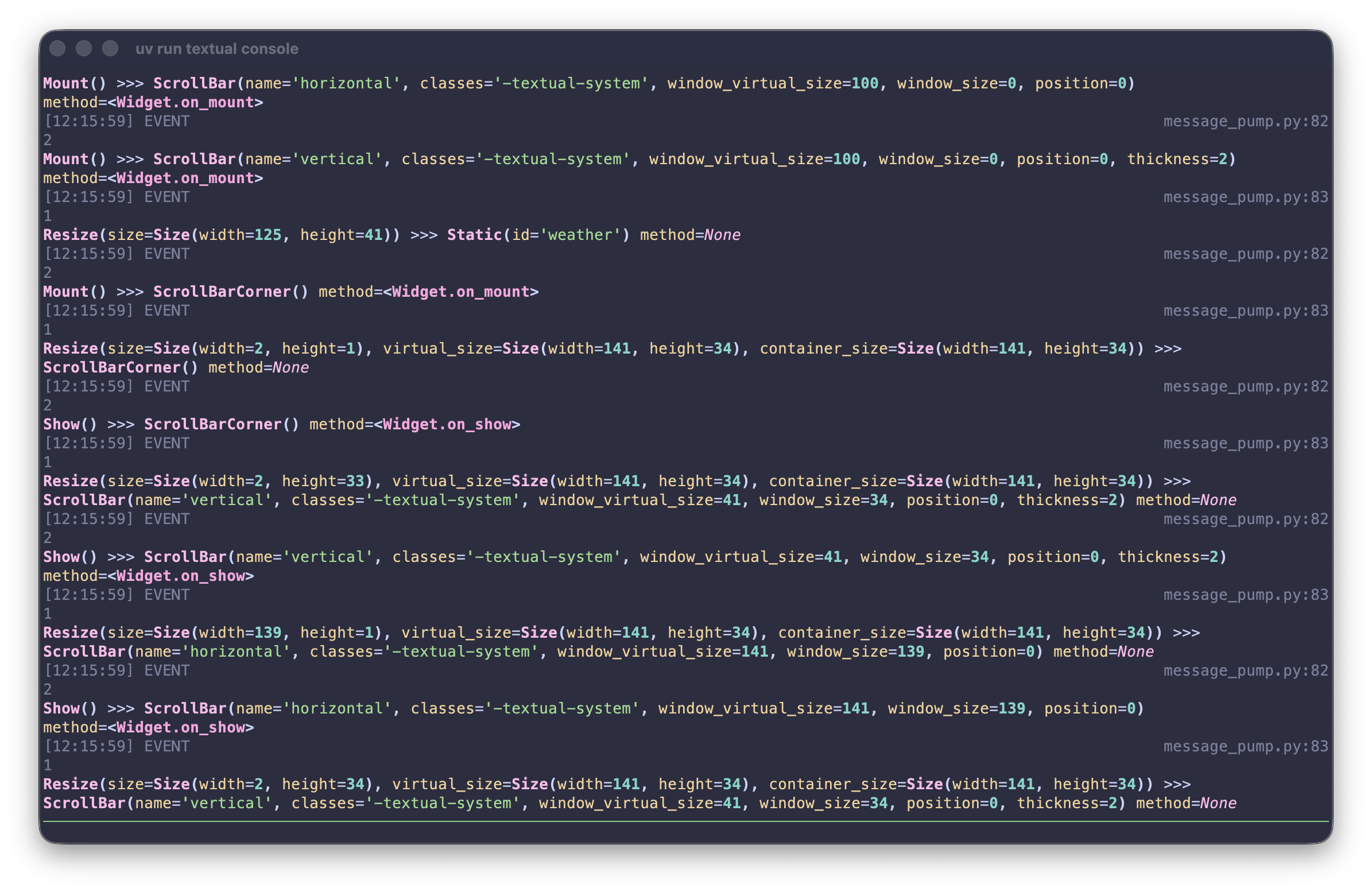
By default, Textual logs to stdout, but you won’t see anything because the application occupies the terminal. To see the Textual logs, you must use the Textual Console application and start your app in dev mode. The application will send the logs to the Textual Console. These logs will include both Textual metadata and messages, as well as any manually instrumented ones.
Start the Textual dev console in one terminal:
1
uv run textual console
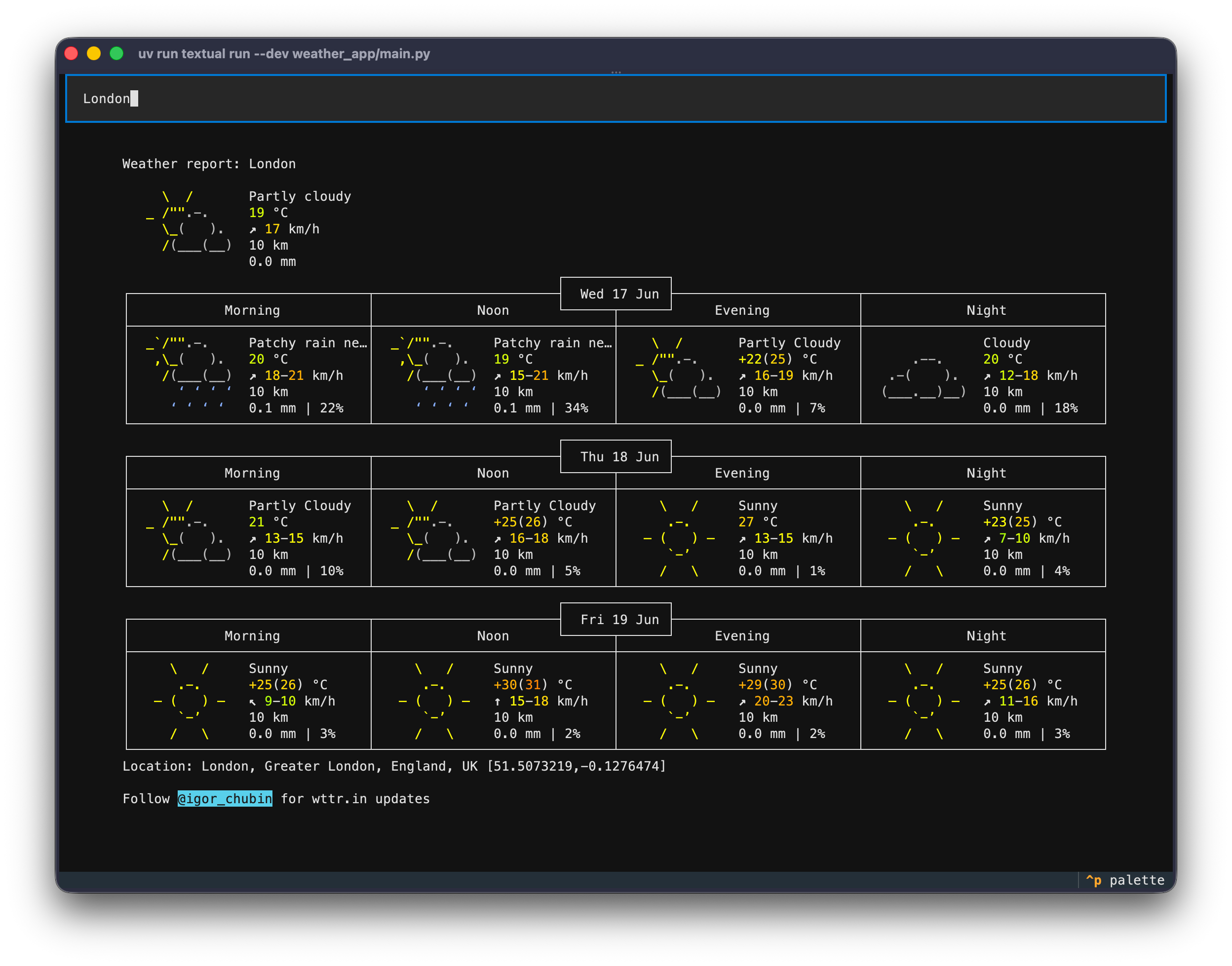
Then run the app with dev mode in another terminal:
1
uv run textual run --dev main.py
The full runnable example can be found on my GitHub. The app adapts the Textual weather app example, integrating all three patterns shown in this post.